1. Interface Overview#
1.1 Purpose#
This API specification is designed to meet the needs of customer business systems to read test data from, and write instrument information and other business data to, the ACal verification/calibration system software.1.2 Audience#
The intended audience of this document is software developers working on metrology business systems.1.3 Scope#
This API specification applies to both ACal Network Edition and ACal Professional Edition software.ℹ️ Recommendation: When more than one computer uses ACal software, it is recommended to perform a one-time center-to-center integration with the central database of ACal Network Edition.1.4 Interface Protocol#
The customer interface uses the HTTP POST communication protocol. Almost any client and any programming language can be used to interact with the ACal customer interface.1.5 Encoding Standard#
Encoding uniformly uses UTF-8.JSON format is used uniformly.2. Preparations#
2.1 Install ACal Software#
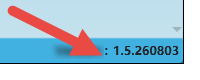
Before deploying the API service, please install the ACal software first. If you are using ACal Network Edition, please install both "ACal Server Management Software" and "ACal Verification/Calibration System Software" on the server.If you do not have the official version, you can open the following link to obtain the Professional Edition trial installation package: (Internal Beta Version)If the version is too low (1.5.260919 or above), please download and install the latest software upgrade package: (Internal Beta Version)How to check the software version: the status bar at the bottom-right of the client's main interface.2.2 Install the API Service#
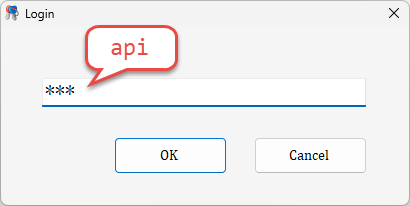
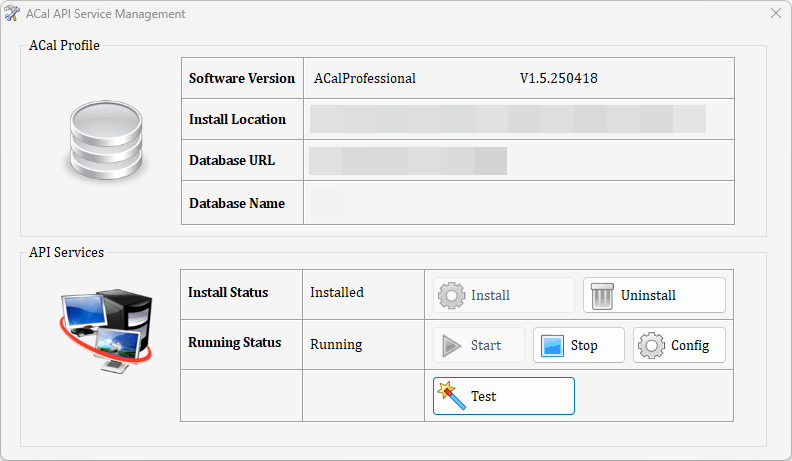
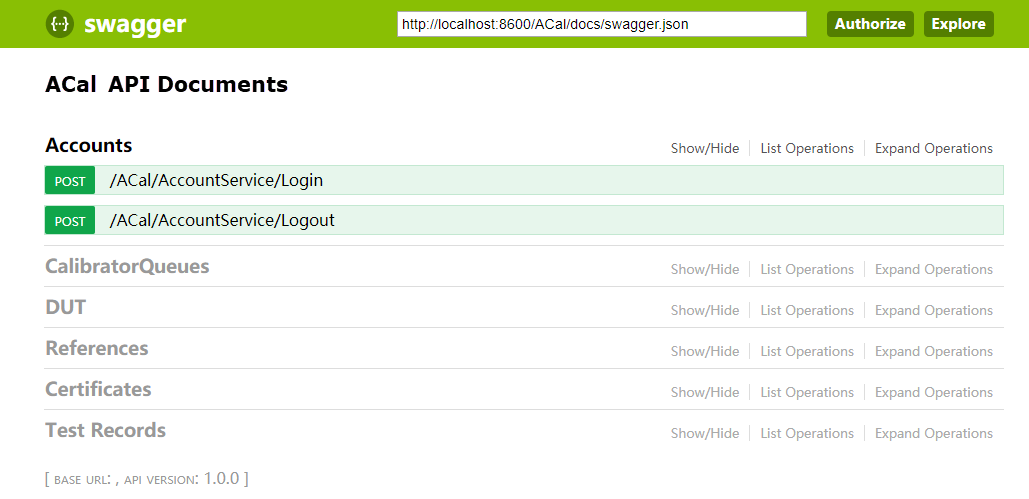
By default, the software does not enable the API service; the user needs to install it manually.Operation method: Run APIServiceManager.exe in the ACal software installation directory. A login window will appear; enter the password "api" to enter the main interface.The software configuration displays the installed ACal software version, installation location, database location, and database name on this machine. The user clicks the "Install" and "Start " buttons in sequence to complete the service deployment.Note: After the service is installed, it will start automatically on every system startup; manual startup is no longer required each time.Note: If the API service program cannot run on an operating system earlier than Windows 8, please download and install .NET Framework 4.5.1 or later first.Click the "Test" button to automatically open Swagger in the browser.2.3 Typical Integration Flow#
Enter the business platform's "Task/Plan Management" module, select the task to be tested, and click the "Download" button to call the ACal API and dispatch instrument information.
Enter the ACal calibration interface, select the instrument to be tested, perform the test, and generate test results.
Enter the business platform's "Task/Plan Management" module, click the "Collect Data" button to call the ACal API and retrieve test data.
2.4 Selecting the Test Data Interface#
Before developing the test data interface, please select the appropriate interface based on the characteristics of your business system:| No. | Data Type | Applicable Business System | Description |
|---|
| 1 | Dictionary data | Provides online certificate generation; when generating a certificate, first select an Excel-like form template, then enter the test data. | |
| 2 | Excel file | Supports uploading offline certificate files | |
3. API Debugging#
This API documentation is only intended to help business platform developers quickly understand the capabilities of the ACal API and the integration design.
Download the Apifox API debugging tool, log in with the user given below and enter the ACal API project to quickly debug interfaces and access more API test cases.Apifox API debugging tool download URL:4. API Authentication#
Modified at 2026-10-29 09:13:07